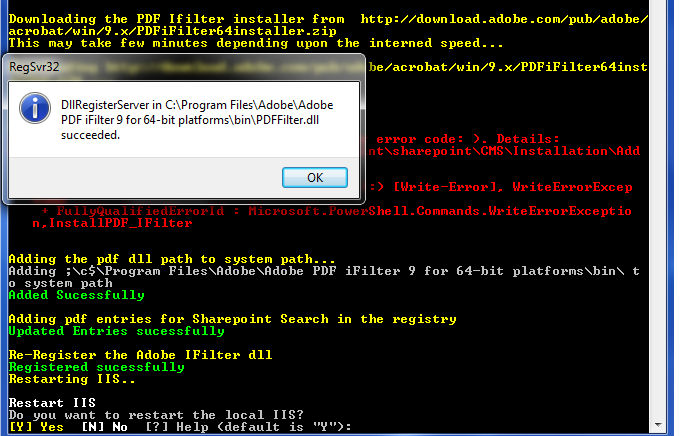
I have created a powershell script for Installing PDF filter in Sharepoint 2010 environment. I have tested it in Windows 2008 R2. Installing a PDF filter is a multi step process since it requires adding the icons in sharepoint _Layouts hive, adding registry entries for the filter, adding PDF extension to Search Service Application and updating DOCICON.XML file.
I have splitted the whole deployment process into 8 steps right from downloading the necessary files from the Adobe site to unzipping and installing the resources.
Below are the commands written in powershell for deploying PDF I filter for Sharepoint 2010. Copy the code and paste it in notepad and save with extension as .ps1. Now right click the file and click 'Run with powershell' to execute the code.
# Constants
$tempfolder = "C:\temp" # path for temporary location
$pdfFilterDownloadUrl = "
http://download.adobe.com/pub/adobe/acrobat/win/9.x/PDFiFilter64installer.zip"
$pdfIconDownloadUrl = "
http://www.adobe.com/images/pdficon_small.gif"
$pdfIconDestinationPath = "\c$\Program Files\Common Files\Microsoft Shared\Web Server Extensions\14\TEMPLATE\IMAGES\pdf.gif"
$docIconXMLFilePath = "\c$\Program Files\Common Files\Microsoft Shared\Web Server Extensions\14\TEMPLATE\XML\DOCICON.XML"
$pdfDllSystemPath = "\c$\Program Files\Adobe\Adobe PDF iFilter 9 for 64-bit platforms\bin\"
$pdfDllPath = "C:\Program Files\Adobe\Adobe PDF iFilter 9 for 64-bit platforms\bin\PDFFilter.dll"
# Create a Temporary folder if not already exists for downloading the installer and gif image
function createTempFolder()
{
Get-Item $tempfolder -ErrorVariable err -ErrorAction "SilentlyContinue" | Out-Null
if ([String]::IsNullOrEmpty($err) -eq $false)
{
new-item -type directory -path $tempfolder -ErrorVariable err -ErrorAction "SilentlyContinue" | Out-Null
$err = ""
}
}
# method to restart the local iis
function RestartIIS()
{
Write-Host "Restarting IIS..." -foregroundcolor Yellow
iisreset /noforce
}
# Method to download the installer
# parameters: $url - url from where to download the file; $destination - physical folder location
function DownloadFile
{
param([string]$URL, [string]$destination)
$percentage = 0
Write-Output ""
Write-Host "Downloading $URL ..." -foregroundcolor Yellow
$clnt = new-object System.Net.WebClient -ErrorVariable err -ErrorAction "SilentlyContinue"
$clnt.DownloadFileAsync($url,$destination)
do
{
$percentage ++
Write-Progress -Activity 'File Download' -Status "downloading..." -PercentComplete $percentage
sleep 5
}
while($clnt.IsBusy)
if ([String]::IsNullOrEmpty($err) -eq $true)
{
Write-Host "File downloaded sucessfully." -foregroundcolor Green
}
else
{
Write-Error "Error in download - Either wrong URL or Address not correct. Details: $err"
}
$err = ""
}
#If download file has extension as .zip, you need to extract the zip
#parameters: $ZIPname - zip file path; $destination - path for unzipping the file
function extractZipFile
{
param([string]$ZIPname, [string]$destination)
$ZIPfile = Get-Item $ZIPname -ErrorVariable err -ErrorAction "SilentlyContinue"
if ([String]::IsNullOrEmpty($err) -eq $false)
{
Write-Error "ERROR: $err Cannot find $ZIPname"
exit
}
$ZIPfolder = Get-Item $destination -ErrorVariable err -ErrorAction "SilentlyContinue"
if ([String]::IsNullOrEmpty($err) -eq $false)
{
Write-Error "ERROR: $err Cannot find $ZIPfolder"
exit
}
else
{
$zipname = $zipfile.fullname # makes sure the path is absolute
$zipDestination = $ZIPfolder.fullname # makes sure the destination path is absolute
$shellApplication = new-object -com shell.application
$zipPackage = $shellApplication.NameSpace($zipname)
$destinationFolder = $shellApplication.NameSpace($ZIPdestination)
$destinationFolder.CopyHere($zipPackage.Items())
}
}
function AddEnvironmentVariablePath([array] $PathsToAdd)
{
$VerifiedPathsToAdd = ""
foreach ($Path in $PathsToAdd) {
if ($Env:Path -like "*$Path*")
{
echo " $Path already in the path"
}
else
{
$VerifiedPathsToAdd += ";$Path";
}
}
if ($VerifiedPathsToAdd -ne "")
{
echo "Adding $VerifiedPathsToAdd to system path"
[System.Environment]::SetEnvironmentVariable("PATH", $Env:Path + "$VerifiedPathsToAdd","Machine")
}
}
function InstallPDF_IFilter
{
#load powershell snapin
Add-PSSnapin Microsoft.SharePoint.PowerShell -ErrorAction "SilentlyContinue" | Out-Null
# Step 1: Create a temp folder for downloading the required files.
Write-Host "Creating a temporary folder at $tempfolder" -foregroundcolor Yellow
createTempFolder
Write-Host "Temporary folder created sucessfully" -foregroundcolor Green
$farm = get-spfarm
# Step 2: Download the pdf icon from site
Write-Host "Downloading the PDF icon from $pdfIconDownloadUrl" -foregroundcolor Yellow
DownloadFile $pdfIconDownloadUrl "$tempfolder/pdf.gif"
Write-Host "PDF Icon downloaded sucessfully" -foregroundcolor Green
# Step 3: Copy the downloaded Icon on all the servers
# connecting to all application servers in the farm for copying the icon
foreach($Server in $farm.servers)
{
if ((($Server.Role -eq "Application") -or ($Server.Role -eq "SingleServer")) -and ($Server.Status -eq "Online"))
{
Write-Output ""
Write-Host ("Copying the PDF icon to the sharepoint folder on " + $Server.Name + "...") -foregroundcolor Yellow
$DestFile = "\\" + $Server.name + $pdfIconDestinationPath
copy-item "$tempfolder\pdf.gif" -destination $DestFile -ErrorVariable err -ErrorAction "SilentlyContinue"
if ([String]::IsNullOrEmpty($err) -eq $true)
{
Write-Host "PDF Icon Copied." -foregroundcolor Green
}
else
{
Write-Error "Error occured. Details: $err"
}
}
}
Write-Output ""
# Step 4: Add .pdf extension to the list of search extensions in the Search Service Appliation
$err = ""
Write-Host "Adding .PDF extension to the list of search extensions in the Search Service Appliation..." -foregroundcolor Yellow
$searchApp = Get-SPEnterpriseSearchServiceApplication
if ([String]::IsNullOrEmpty($err) -ne $true)
{
Write-Error "Error: Search Service Application is missing. Details: $err"
}
# Check if the extension already exists or not
$PDFcheck = get-SPEnterpriseSearchCrawlExtension "pdf" -SearchApplication $searchApp -ErrorVariable err -ErrorAction "SilentlyContinue"
if([String]::IsNullOrEmpty($PDFcheck) -eq $true)
{
$err = ""
new-SPEnterpriseSearchCrawlExtension "pdf" -SearchApplication $searchApp -ErrorVariable err -ErrorAction "SilentlyContinue" | Out-Null
if([String]::IsNullOrEmpty($err) -eq $true)
{
Write-Host "Extension added sucessfully" -foregroundcolor Green
}
else
{
Write-Error "Error Occured while adding .pdf extension: $err"
}
}
else
{
Write-Host " The .PDF extension is already listed" -foregroundcolor Yellow
}
Write-Output ""
# Step 5: Add pdf extension in the Sharepoint Docicon.XML file
foreach($Server in $farm.servers)
{
if ((($Server.Role -eq "Application") -or ($Server.Role -eq "SingleServer")) -and ($Server.Status -eq "Online"))
{
Write-Output ""
Write-Host ("Adding pdfs as extension to docicons xml file on " + $Server.name) -foregroundcolor Yellow
$XMLfile = "\\" + $Server.name + $docIconXMLFilePath
[xml]$dociconxml = get-content $XMLfile -ErrorVariable err -ErrorAction "SilentlyContinue"
if ([String]::IsNullOrEmpty($err) -eq $true)
{
$PNGelement = $dociconxml.DocIcons.ByExtension.Mapping | Where-Object { $_.Key -eq "png" }
$PDFnode = $dociconxml.DocIcons.ByExtension.Mapping | Where-Object { $_.Key -eq "pdf" }
if ($PDFnode.key -eq "pdf"){
Write-Host "pdf extension on Docicon.xml file already exists" -foregroundcolor Yellow
}
else
{
# add a new pdf node to the xml document
$element = $dociconxml.DocIcons.ByExtension.Mapping[0].clone() # Duplicates an existing node
$element.key = "pdf"
$element.value = "pdf.gif"
$element.OpenControl = ""
$element.EditText = ""
$dociconxml.DocIcons.ByExtension.InsertBefore($element,$PNGelement) | Out-Null # Inserts the new node before the existing PNG element
$dociconxml.save($XMLfile)
if ([String]::IsNullOrEmpty($err) -eq $true)
{
Write-Host "Entry updated sucessfully" -foregroundcolor Green
}
else
{
Write-Error "Error occured while adding pdf entry in docicon.xml file. Details: $err" }
}
}
else
{
Write-Error "XML not found: $err"
}
}
}
Write-Output ""
# Step 6: Download the PDF I Filter from Adobe Site.
Write-Host "Downloading the PDF Ifilter installer from $pdfFilterDownloadUrl" -foregroundcolor Yellow
Write-Host "This may take few minutes depending upon the internet speed..." -foregroundcolor Yellow
DownloadFile $pdfFilterDownloadUrl "$tempfolder\PDFiFilter64installer.zip"
# Extract the downloaded file which is in .zip format
Write-Host "Extracting the downloaded Zip" -foregroundcolor Yellow
extractZipFile "$tempfolder\PDFiFilter64installer.zip" $tempfolder
Write-Host "File extracted sucessfully" -foregroundcolor Green
Write-Host "Running the PDF iFilter installer..." -foregroundcolor Yellow
$proc = Start-Process C:\Windows\System32\msiexec.exe " /passive /i $tempfolder\PDFFilter64installer.msi" -wait -ErrorVariable err -ErrorAction "SilentlyContinue"
# $LASTEXITCODE - Contains the exit code of the last Win32 executable execution
if ($LASTEXITCODE -eq "0")
{
Write-Host "Installation sucessful" -foregroundcolor Green
}
else
{
Write-Error "Installed with following error code: $LastExitCode). Details: $err"
}
Write-Output ""
# Step 7: Add the pdf Dll to system path (Environment variable)
Write-Host "Adding the pdf dll path to system path..." -foregroundcolor Yellow
AddEnvironmentVariablePath($pdfDllSystemPath)
Write-Host "Added Sucessfully" -foregroundcolor Green
Write-Output ""
# Step 8: Add PDF Entries for Sharepoint Search in System Registry
Write-Host "Adding pdf entries for Sharepoint Search in the registry" -foregroundcolor Yellow
New-Item -path registry::'HKEY_LOCAL_MACHINE\SOFTWARE\Microsoft\Office Server\14.0\Search\Setup\Filters\.pdf' -ErrorAction "SilentlyContinue" | Out-Null
New-ItemProperty -Path registry::'HKEY_LOCAL_MACHINE\SOFTWARE\Microsoft\Office Server\14.0\Search\Setup\Filters\.pdf' -Name "Extension" -value ".pdf" -PropertyType string -ErrorAction "SilentlyContinue" | Out-Null
New-ItemProperty -Path registry::'HKEY_LOCAL_MACHINE\SOFTWARE\Microsoft\Office Server\14.0\Search\Setup\Filters\.pdf' -Name "Mime Types" -value "application/pdf" -PropertyType string -ErrorAction "SilentlyContinue" | Out-Null
New-ItemProperty -Path registry::'HKEY_LOCAL_MACHINE\SOFTWARE\Microsoft\Office Server\14.0\Search\Setup\Filters\.pdf' -Name "FileTypeBucket" -value "1" -PropertyType dword -ErrorAction "SilentlyContinue" | Out-Null
New-Item -path registry::'HKEY_LOCAL_MACHINE\SOFTWARE\Microsoft\Office Server\14.0\Search\Setup\ContentIndexCommon\Filters\Extension\.pdf' -ErrorAction "SilentlyContinue" | Out-Null
New-ItemProperty -Path registry::'HKEY_LOCAL_MACHINE\SOFTWARE\Microsoft\Office Server\14.0\Search\Setup\ContentIndexCommon\Filters\Extension\.pdf' -name "(Default)" -Value "{E8978DA6-047F-4E3D-9C78-CDBE46041603}" -PropertyType string -ErrorAction "SilentlyContinue" | Out-Null
Write-Host "Updated Entries sucessfully" -foregroundcolor Green
Write-Output ""
# re-register the adobe ifilter dll
Write-Host "Re-Register the Adobe IFilter dll" -foregroundcolor Yellow
regsvr32.exe $pdfDllPath
Write-Host "Registered sucessfully" -foregroundcolor Green
# Do an IISRESET and restart the Search service
Write-Host "Restarting IIS.." -foregroundcolor Yellow
RestartIIS
Write-Output ""
Write-Host "Restarting the Search Service..." -foregroundcolor Yellow
Stop-Service "OSearch14"
Start-Service "OSearch14"
Write-Host "Sucess" -foregroundcolor Green
}
#Main method
InstallPDF_IFilter
$exitprompt = Read-Host "PDF Ifilter Installation Complete. Press ENTER to exit"
Download the ps1 file from
here.