Pages

Search This Blog

Showing posts with label open source. Show all posts

Wednesday, April 18, 2012

Free Small Business Site Template for SharePoint 2010

Small Business Template is a SharePoint site definition that can be used as the starter point for publishing your business site on SharePoint 2010. This template provides you a basic set of 5 initial pages that you can increase or edit based on your organization's content. Publishing feature is a pre requisit for this template to work.

 http://code.google.com/p/free-sharepoint-small-business-website-template-theme/

Who benefits from using Small Business Site Template?

Using this template benefits all of the following:
End Users / Administrators – End Users can build their company portal within minutes and then customize the same according to their requirements from the UI itself.
SharePoint Application Developers – Application developers can customize the existing template easily and can update the package to undergo new implementation.

What features does Small Business Site Template offer?

This template provides the following functional features:
  • Rocket-Launch your Website in minutes !!!
  • Ready to use Company portal
  • Support for end to end customization according to own requirements.
  • Customizable Theme
  • Common site content (Header, Footer) customizable by administrator.
  • Easy enhancement support for developers.
  • Publishing as easy as 1-2-3 ! 

Monday, February 6, 2012

SharePoint Twitter 3.0


What is SharePoint Twitter?


Are you looking to show the twitter updates of your organization on your sharepoint portal ? If yes, then this project is what you might need.
We are providing five !webparts for SharePoint 2007 & SharePoint 2010.
  1. First, that can be used to show the tweets of any user on the SharePoint portal.
  2. Second webpart can be used to post tweet to twitter directly from your sharepoint portal.
  3. Third webpart can be used to show the friends of any user on the SharePoint portal.
  4. Fourth webpart can be used to show the followers of any user on the SharePoint portal.
  5. Fifth webpart can be used to show the 'follow us' link, which lets the user follow with a single click.
Just download and install, and you are all set.
All you need is to configure the twitter settings for each of the WebParts after installation.
These web parts use out of the box SharePoint CSS elements that match automatically with your current site theme.

Features

  1. Posting / Reading tweets from / to your twitter page
  2. 'follow Us' button webpart included.
  3. Paging support
  4. Show user images
  5. Show Header and footer
  6. Support for rich media content like images, links etc 

SharePoint Facebook Kit 4.0


What is SharePoint Facebook?


Have you ever needed to show the facebook updates of your organization on your sharepoint portal ? If yes, this project is for you.
What we provide is four webparts for SharePoint 2007 & SharePoint 2010.
  1. First that can be used to show the facebook wall of any user on the SharePoint portal.
  2. Second webpart can be used to post updates to facebook directly from your sharepoint portal.
  3. Third webpart, the Like Box, is a social plugin that enables Facebook Page owners to attract and gain Likes from their own website. The Like Box enables users to see how many users already like this Page, and which of their friends like it too.
  4. Fourth webpart, the Like button, lets a user share your content with friends on Facebook. When the user clicks the Like button on your site, a story appears in the user's friends' News Feed with a link back to your website.

Just download, install and configure, and you are all set. Follow our step by step guides for the configuration and installation sections provided below.

Features

  1. Posting / Reading feeds from wall/page/Group
  2. Like Box and Like Button webparts included.
  3. Paging support
  4. Show my or all feeds
  5. Show user images
  6. Support for rich media content like videos, images, links etc
  7. stsadm,powershell installers included 

SharePoint Project Template for Visual Studio 2010 (c#, VB)


What is SharePoint Project Template?

SharePoint Project Template is a predefined solution template for C# and VB with general classes and API's which is used in SharePoint projects which can save developer's effort to create solutions, writing base functionality and common methods

Who benefits from using SharePoint Project Template?

Using SharePoint Project Template benefits all of the following:
SharePoint Application Developers – Application developers can create predefined SharePoint solution in seconds. They will get already implemented exception class, logging, error capturing control, common method etc.

http://code.google.com/p/visual-studio-sharepoint-project-template/

Powershell script to retrieve a deployed wsp from configuration database : SharePoint 2010

Many a times, we find ourselves in a situation wherein we want to find out what are the contents of a deployed wsp so as to debug issues, compare releases etc.

This is not such a trivial task as the sharepoint central administration pages do not provide us with any option to retrieve a deployed wsp from the sharepoint configuration database.

This task can be done through a powershell script. The powershell script given below takes 2 parameters:

- The display name of the solution to retrieve (.wsp file)
- A path on the local machine where the retrieved wsp will be saved.

If no name of the solution is given , it displays the list of deployed solutions to the user and lets the user choose the solution to retrieve. Many more such scripts can be seen at the source project for this script available at http://sharepointpsscripts.codeplex.com/


param ([string] $name, [string] $localpath)
#Load the required SharePoint assemblies containing the classes used in the script
#The Out-Null cmdlet instructs the interpreter to not output anything to the interactive shell
#Otherwise information about each assembly being loaded would be displayed
[System.Reflection.Assembly]::Load("Microsoft.SharePoint, Version=12.0.0.0 , Culture=Neutral, PublicKeyToken=71e9bce111e9429c") | Out-Null

function Get-SolutionName()
{
    # Initialize an empty hashtable to store solution names and indexes
    $solHash = @{};
   
    # Bind to the collections of all solutions in the local farm and process them one by one, storing names in a hashtable
    # under automatically incremented indexes
    # The Foreach-Object cmdlet uses the begin/process/end structure to initialize the $i index counter
    ([Microsoft.SharePoint.Administration.SPFarm]::Local).Solutions |
        Foreach-Object {$i=1;} {$solHash.$i = $_.displayname; $i++} { }
   
    Write-Host;
   
    # If solutions were found, present the user with selection
    if ($solHash.Count -gt 0)
    {
        Write-Host -Object "The following solutions were found in the farm:" -ForegroundColor Green -BackgroundColor DarkMagenta;
        Write-Host;
       
        # Hashtables are not sortable, so in order to sort solutions by index keys have to be sorted separately first
        $solHash.Keys | Sort-Object | Foreach-Object {Write-Host -Object $("`t[{0}] {1}" -f $_, $solHash[$_]) -ForegroundColor Yellow -BackgroundColor DarkMagenta;}
        Write-Host;
        Write-Host -Object "Enter the index number of the solution you wish to retrieve, or 0 (zero) to exit: " -NoNewLine -ForegroundColor Green -BackgroundColor DarkMagenta;
       
        # Obtain input from user and return the matching value from the hashtable
        return $solHash[[int](Read-Host)];
    }
   
    # No solutions found in the configuration database
    else
    {
        Write-Host -Object "The local farm's solution store contains no solutions." -ForegroundColor Green -BackgroundColor DarkMagenta;
        Write-Host;
    }
}
# Check if name of target solution was specified as a parameter
if (-not $name)
{
    # Name of solution was not specifed, so call the Get-SolutionName function to obtain the name
    $name = Get-SolutionName;
   
    # If after calling the function the name is still unknown, stop execution
    if (-not $name)
    { break; }
}
# Check if local path to save the file to was specified as a parameter
if (-not $localpath)
{
    Write-Host;
    # Prompt and obtain local path value from user
    Write-Host -Object "Enter the local path to the folder you want the solution file to be saved to: " -ForegroundColor Green -BackgroundColor DarkMagenta;
    $localpath = Read-Host;
}
# Check if the path specified is valid and throw an exception if it's not
if (-not $(Test-Path -Path $localpath -PathType Container))
{
    throw "`"$localpath`" is not a valid path! If the path contains spaces, it must be enclosed in SINGLE quotes."
}
# Try to bind to the target solution
$solution = ([Microsoft.SharePoint.Administration.SPFarm]::Local).Solutions | Where-Object {$_.Name -eq $name}
Write-Host;
# Check if solution was found
if ($solution -ne $null)
{
    # Constitute the full local path (including file name)
    $solPath = Join-Path -Path $localpath -ChildPath $solution.SolutionFile.Name;
   
    # Try and save solution file locally
 $solution.SolutionFile.SaveAs($solPath);
   
    # If no errors occurred, display a success message
    if ($?)
    {
    Write-Host "Solution file saved successfully to $solPath" -ForegroundColor Green -BackgroundColor DarkMagenta;
       Write-Host;
    }
}
# Solution not found in the store; display a warning message
else
{
 Write-Host -Object "Solution `"$name`" could not be found!" -ForegroundColor Red -BackgroundColor DarkMagenta;
    Write-Host;
}

Tuesday, January 3, 2012

Custom TreeView Column for SharePoint


SharePoint doesn’t provide any column type to represent the relational data in tree view format. E.g. Country > State > City is the best example for such data structures. This open source package provides the capability to creating tree view column within SharePoint environment.
If you are also looking for any data to represent in tree format in SharePoint 2010 then this control for you provided you are storing data in one list with parent lookup reference of same list.

http://code.google.com/p/sharepoint-treeview-column/

Monday, December 19, 2011

Excel Addin : SharePoint List data using Web Service

In this post I will tell you how a SharePoint List can be accessed through the web service. In this example I have a list name “LearningList”, which is accessed through the web service. I have accessed the list, shown the data from the list on to the excel sheet and updated the data using the same web service. To have the source code to the example Click here.

CODE SNIPPET
  •  Create a new Custom List and name it “LearningList”.
  •  Create the fields as shown in the image

  • Create a new Visual Studio 2010 project, select the Office 2010 template and in it select the Excel 2010.
  •  Now add the WPF User Control name it “BookUserControl.xaml”,  add a class name it “Books.cs” and add a User Control name it “HostingControl.cs”.
  • After adding all the above file the code structure looks something like : 


  •  Now double click the BookUserControl.xaml and add the 5 labels, 3 textbox, 2 buttons and 1 listbox, in the way as shown in picture below.


  • While adding you will notice that the XAML code is being written, which defines the property of the controls added.
  • Double click the Buttons to add the event handlers for each of them in the code behind (this will also update the XAML code).
  •  Now add the service reference to the code. Right click the project and select the “Add Service Reference”.
  •   A new pop window will open, click “Advanced àAdd Web Reference à type the url of the list service. Example: http://<server name>/_vti_bin/Lists.asmx
  •  Click the go button, which will show all the available methods with the service,  name the Service reference (SPListWebService) and click on the Add Reference button to add the reference to the project.
  • Now double click the Books.cs and add the following code.
    class Books
    {
        public string bookTitle { get; set; }
        public string bookAuthor { get; set; }
        public string bookPrice { get; set; }
        public string bookStockCount { get; set; }
    }

  •  Open the BookUserControl.xaml.cs by double clicking it and add the following code:
public partial class BooksUserControl : UserControl
    {
        //Collection makes it easier to query and bind data to controls
        List<Books> myBooks = new List<Books>();

        public string ListName = "LearningList";

        public BooksUserControl()
        {
            InitializeComponent();
        }

        private void btnLoad_Click(object sender, RoutedEventArgs e)
        {
            lstBxBooksTitle.Items.Refresh();

            //Accessing the List Web Service : Provide Credentials and URL of the
list Web Service
            SPListsWebService.Lists myListProxy = new SPListsWebService.Lists();
            myListProxy.Credentials =
     System.Net.CredentialCache.DefaultCredentials;
            myListProxy.Url = "http://<server name>/_vti_bin/lists.asmx";

            //Get the list items by making call to the GetListItem() method
            try
            {
                XmlNode xmlListItems = myListProxy.GetListItems(ListName, null,
null, null, null, null, null);
                //XElement newRoot =  new XElement("

                foreach (XmlNode outerNode in xmlListItems.ChildNodes)
                {
                    if (outerNode.NodeType.Equals(System.Xml.XmlNodeType.Element))
                    {
                        foreach (XmlNode innerNode in outerNode.ChildNodes)
                        {
                            if (innerNode.NodeType.Equals(System.Xml.XmlNodeType.Element))
                            {
                                XmlNode listFieldTitle = innerNode.Attributes.GetNamedItem("ows_Title");
                                XmlNode listFieldAuthor = innerNode.Attributes.GetNamedItem("ows_Author0");
                                XmlNode listFieldPrice = innerNode.Attributes.GetNamedItem("ows_Price");
                                XmlNode listFieldInStock = innerNode.Attributes.GetNamedItem("ows_InStock");

                                Books objBooks = new Books();
                                objBooks.bookTitle = listFieldTitle.InnerText;
                                objBooks.bookAuthor = listFieldAuthor.InnerText;
                                objBooks.bookPrice = listFieldPrice.InnerText;
                                objBooks.bookStockCount = listFieldInStock.InnerText;

                                myBooks.Add(objBooks);
                                lstBxBooksTitle.Items.Add(objBooks.bookTitle);
                            }
                        }
                    }
                }
            }
            catch (Exception ex)
            {
                MessageBox.Show("Error Occured: " + ex.Message);
            }

        }

        private void btnUpdate_Click(object sender, RoutedEventArgs e)
        {
            Excel.Worksheet myWorksheet = Globals.ThisAddIn.Application.ActiveSheet as Excel.Worksheet;

            int index = 0, temp = 0;
            string bookTitleUpdate = Convert.ToString(lstBxBooksTitle.SelectedItem);
            string bookAuthorUpdate = txtAuthor.Text;
            string bookPriceUpdate = txtPrice.Text;
            string bookInStockUpdate = txtStockCount.Text;

            foreach (Books objBooks in myBooks)
            {
                temp++;
                if (objBooks.bookTitle.Equals(bookTitleUpdate))
                {
                    index = temp;
                }
            }

            //Accessing the List Web Service : Provide Credentials and URL of the list Web Service
            SPListsWebService.Lists myListProxy = new SPListsWebService.Lists();
            myListProxy.Credentials = System.Net.CredentialCache.DefaultCredentials;
            myListProxy.Url = "http://br-pc-350:2789/_vti_bin/lists.asmx";

            //get the list id and the View id
            XmlNode xmlListView = myListProxy.GetListAndView(ListName, "");
            string ListId = xmlListView.ChildNodes[0].Attributes["Name"].Value.ToString();
            string ViewId = xmlListView.ChildNodes[1].Attributes["Name"].Value.ToString();

            //Create a XML for updating the list
            XmlDocument xmlDoc = new XmlDocument();
            XmlElement xmlBatch = xmlDoc.CreateElement("Batch");
            xmlBatch.SetAttribute("OnError", "Continue");
            xmlBatch.SetAttribute("ListVersion", "1");
            xmlBatch.SetAttribute("ViewName", ViewId);

            xmlBatch.InnerXml = "<Method ID='1' Cmd='Update'>" + "<Field Name='ID'>" + index + "</Field>" + "<Field Name='Title'>" + bookTitleUpdate + "</Field><Field Name='Author0'>" + bookAuthorUpdate +
                "</Field><Field Name='Price'>" + bookPriceUpdate + "</Field><Field Name='InStock'>" + bookInStockUpdate + "</Field></Method>";

            //Update the List using the Proxy
            try
            {
                XmlNode xmlReturn = myListProxy.UpdateListItems(ListName, xmlBatch);
                MessageBox.Show("List Item Updated Succesfully..!!");
            }
            catch (Exception ex)
            {
                MessageBox.Show("Error Occured " + ex.Message);
            }
        }

        private void lstBxBooksTitle_SelectionChanged(object sender, SelectionChangedEventArgs e)
        {
            string bookAuthor = null, bookPrice = null, bookStockCount = null;

            string selectedBook = Convert.ToString(lstBxBooksTitle.SelectedItem);

            //LinQ Query
            var bookData = from p in myBooks.Where(p => p.bookTitle == selectedBook)
                           select new { p.bookAuthor, p.bookPrice, p.bookStockCount };

            foreach (var tmp in bookData)
            {
                bookAuthor = tmp.bookAuthor;
                bookPrice = tmp.bookPrice;
                bookStockCount = tmp.bookStockCount;
            }

            Excel.Worksheet myWorkSheet = Globals.ThisAddIn.Application.ActiveSheet as Excel.Worksheet;
            myWorkSheet.Cells[1, 1] = "Title";
            myWorkSheet.Cells[1, 2] = "Author";
            myWorkSheet.Cells[1, 3] = "Price";
            myWorkSheet.Cells[1, 4] = "Stock Count";

            //Displaying the Data on to the Excel Sheet
            myWorkSheet.Cells[2, 1] = selectedBook;
            myWorkSheet.Cells[2, 2] = bookAuthor;
            myWorkSheet.Cells[2, 3] = bookPrice;
            myWorkSheet.Cells[2, 4] = bookStockCount;

            //Displaying the data in the text Box
            txtAuthor.Text = bookAuthor;
            txtPrice.Text = bookPrice;
            txtStockCount.Text = bookStockCount;
        }
    }

  • Now compile the code by pressing the F6.
  •  Now your WPF control will be available in the toolbox, drag and drop it on to the HostingControl user control. (as shown in in the picture below)


  •  Now open the This.Addin.cs and add the following code :
public partial class ThisAddIn
    {
        HostingControl objHostingControl = new HostingControl();
        string hostingControlTitle = "Books Data";
        Office.CustomTaskPane ctp;

        private void ThisAddIn_Startup(object sender, System.EventArgs e)
        {
            ctp = this.CustomTaskPanes.Add(objHostingControl, hostingControlTitle);
            ctp.Visible = true;
            ctp.DockPosition = Microsoft.Office.Core.MsoCTPDockPosition.msoCTPDockPositionRight;
        }

        private void ThisAddIn_Shutdown(object sender, System.EventArgs e)
        {
        }

        #region VSTO generated code

        /// <summary>
        /// Required method for Designer support - do not modify
        /// the contents of this method with the code editor.
        /// </summary>
        private void InternalStartup()
        {
            this.Startup += new System.EventHandler(ThisAddIn_Startup);
            this.Shutdown += new System.EventHandler(ThisAddIn_Shutdown);
        }
       
        #endregion
    }

  •   Now you can run your code which will appear somewhat like this:

·          

Sunday, November 6, 2011

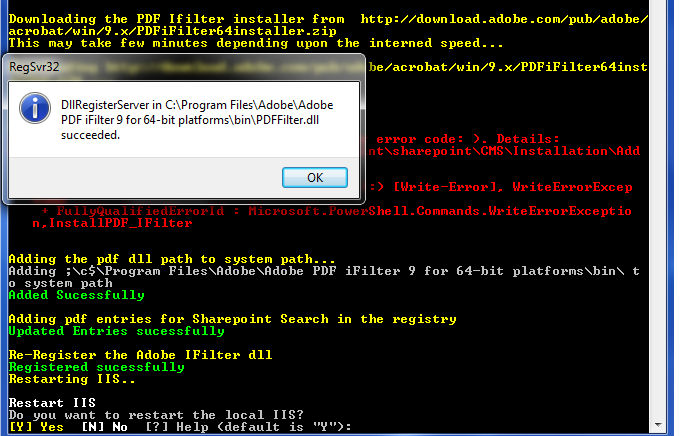
Powershell Script for Installing PDF ifilter for Sharepoint 2010

I have created a powershell script for Installing PDF filter in Sharepoint 2010 environment. I have tested it in Windows 2008 R2. Installing a PDF filter is a multi step process since it requires adding the icons in sharepoint _Layouts hive, adding registry entries for the filter, adding PDF extension to Search Service Application and updating DOCICON.XML file.

I have splitted the whole deployment process into 8 steps right from downloading the necessary files from the Adobe site to unzipping and installing the resources.


Below are the commands written in powershell for deploying PDF I filter for Sharepoint 2010. Copy the code and paste it in notepad and save with extension as .ps1. Now right click the file and click 'Run with powershell' to execute the code.

# Constants
$tempfolder = "C:\temp"   # path for temporary location
$pdfFilterDownloadUrl = "http://download.adobe.com/pub/adobe/acrobat/win/9.x/PDFiFilter64installer.zip"
$pdfIconDownloadUrl = "http://www.adobe.com/images/pdficon_small.gif"
$pdfIconDestinationPath = "\c$\Program Files\Common Files\Microsoft Shared\Web Server Extensions\14\TEMPLATE\IMAGES\pdf.gif"
$docIconXMLFilePath = "\c$\Program Files\Common Files\Microsoft Shared\Web Server Extensions\14\TEMPLATE\XML\DOCICON.XML"
$pdfDllSystemPath = "\c$\Program Files\Adobe\Adobe PDF iFilter 9 for 64-bit platforms\bin\"
$pdfDllPath = "C:\Program Files\Adobe\Adobe PDF iFilter 9 for 64-bit platforms\bin\PDFFilter.dll"

# Create a Temporary folder if not already exists for downloading the installer and gif image
function createTempFolder()
{
 Get-Item $tempfolder -ErrorVariable err -ErrorAction "SilentlyContinue" | Out-Null
 if ([String]::IsNullOrEmpty($err) -eq $false)
 {
  new-item -type directory -path $tempfolder -ErrorVariable err -ErrorAction "SilentlyContinue" | Out-Null
  $err = ""
 }
}
# method to restart the local iis
function RestartIIS()
{
 Write-Host "Restarting IIS..." -foregroundcolor Yellow
 iisreset /noforce
}
# Method to download the installer
# parameters: $url - url from where to download the file; $destination - physical folder location
function DownloadFile
{
    param([string]$URL, [string]$destination)
 $percentage = 0
    Write-Output ""
    Write-Host "Downloading $URL ..." -foregroundcolor Yellow
    $clnt = new-object System.Net.WebClient -ErrorVariable err -ErrorAction "SilentlyContinue"
    $clnt.DownloadFileAsync($url,$destination)
 do
 {
  $percentage ++
  Write-Progress -Activity 'File Download' -Status "downloading..." -PercentComplete $percentage
  sleep 5
 }
 while($clnt.IsBusy)
    if ([String]::IsNullOrEmpty($err) -eq $true)
 {
  Write-Host "File downloaded sucessfully." -foregroundcolor Green
 }
    else
 {
  Write-Error "Error in download - Either wrong URL or Address not correct. Details: $err"
 }
 $err = ""
}
#If download file has extension as .zip, you need to extract the zip
#parameters: $ZIPname - zip file path; $destination - path for unzipping the file
function extractZipFile
{
 param([string]$ZIPname, [string]$destination)
 $ZIPfile = Get-Item $ZIPname  -ErrorVariable err -ErrorAction "SilentlyContinue"
    if ([String]::IsNullOrEmpty($err) -eq $false)
 {
     Write-Error "ERROR: $err Cannot find $ZIPname"
        exit
    }
    $ZIPfolder = Get-Item $destination  -ErrorVariable err -ErrorAction "SilentlyContinue"
    if ([String]::IsNullOrEmpty($err) -eq $false)
 {
      Write-Error "ERROR: $err Cannot find $ZIPfolder"
         exit
    }
    else
 {
  $zipname = $zipfile.fullname # makes sure the path is absolute
  $zipDestination = $ZIPfolder.fullname # makes sure the destination path is absolute
  $shellApplication = new-object -com shell.application
  $zipPackage = $shellApplication.NameSpace($zipname)
  $destinationFolder = $shellApplication.NameSpace($ZIPdestination)
  $destinationFolder.CopyHere($zipPackage.Items())
  }
}
function AddEnvironmentVariablePath([array] $PathsToAdd)
{
  $VerifiedPathsToAdd = ""
  foreach ($Path in $PathsToAdd) {
    if ($Env:Path -like "*$Path*")
 {
      echo " $Path already in the path"
    }
    else
 {
      $VerifiedPathsToAdd += ";$Path";
    }
  }
  if ($VerifiedPathsToAdd -ne "")
  {
    echo "Adding $VerifiedPathsToAdd to system path"
    [System.Environment]::SetEnvironmentVariable("PATH", $Env:Path + "$VerifiedPathsToAdd","Machine")
  }
}
function InstallPDF_IFilter
{
#load powershell snapin
 Add-PSSnapin Microsoft.SharePoint.PowerShell -ErrorAction "SilentlyContinue" | Out-Null
# Step 1: Create a temp folder for downloading the required files.
 Write-Host "Creating a temporary folder at $tempfolder" -foregroundcolor Yellow
 createTempFolder
 Write-Host "Temporary folder created sucessfully" -foregroundcolor Green
 $farm = get-spfarm
# Step 2: Download the pdf icon from site
 Write-Host "Downloading the PDF icon from $pdfIconDownloadUrl" -foregroundcolor Yellow
 DownloadFile $pdfIconDownloadUrl "$tempfolder/pdf.gif"
 Write-Host "PDF Icon downloaded sucessfully" -foregroundcolor Green
# Step 3: Copy the downloaded Icon on all the servers
 # connecting to all application servers in the farm for copying the icon
    foreach($Server in $farm.servers)
 { 
       if ((($Server.Role -eq "Application") -or ($Server.Role -eq "SingleServer")) -and ($Server.Status -eq "Online"))
  {   
            Write-Output ""
            Write-Host ("Copying the PDF icon to the sharepoint folder on " + $Server.Name + "...") -foregroundcolor Yellow
            $DestFile = "\\" + $Server.name + $pdfIconDestinationPath 
            copy-item "$tempfolder\pdf.gif" -destination $DestFile -ErrorVariable err -ErrorAction "SilentlyContinue"
            if ([String]::IsNullOrEmpty($err) -eq $true)
   {
    Write-Host "PDF Icon Copied." -foregroundcolor Green
   }
            else
   {
    Write-Error "Error occured. Details: $err"
   }
        }
    }
    Write-Output ""

# Step 4: Add .pdf extension to the list of search extensions in the Search Service Appliation
 $err = ""
    Write-Host "Adding .PDF extension to the list of search extensions in the Search Service Appliation..." -foregroundcolor Yellow
    $searchApp = Get-SPEnterpriseSearchServiceApplication
    if ([String]::IsNullOrEmpty($err) -ne $true)
 {
  Write-Error "Error: Search Service Application is missing. Details: $err"
 }

 # Check if the extension already exists or not
    $PDFcheck = get-SPEnterpriseSearchCrawlExtension "pdf" -SearchApplication $searchApp -ErrorVariable err -ErrorAction "SilentlyContinue"
 if([String]::IsNullOrEmpty($PDFcheck) -eq $true)
 {
 $err = ""
 new-SPEnterpriseSearchCrawlExtension "pdf" -SearchApplication $searchApp -ErrorVariable err -ErrorAction "SilentlyContinue" | Out-Null
  if([String]::IsNullOrEmpty($err) -eq $true)
  {
   Write-Host "Extension added sucessfully" -foregroundcolor Green
  }
  else
  {
   Write-Error "Error Occured while adding .pdf extension: $err"
  }
 }
 else
 {
  Write-Host " The .PDF extension is already listed" -foregroundcolor Yellow
 }
 Write-Output ""
   
   
# Step 5: Add pdf extension in the Sharepoint Docicon.XML file

 foreach($Server in $farm.servers)
 { 
 if ((($Server.Role -eq "Application") -or ($Server.Role -eq "SingleServer")) -and ($Server.Status -eq "Online"))
  {
   Write-Output ""
   Write-Host ("Adding pdfs as extension to docicons xml file on " + $Server.name) -foregroundcolor Yellow
   $XMLfile = "\\" + $Server.name + $docIconXMLFilePath
   [xml]$dociconxml = get-content  $XMLfile -ErrorVariable err -ErrorAction "SilentlyContinue"
   if ([String]::IsNullOrEmpty($err) -eq $true)
   {
    $PNGelement = $dociconxml.DocIcons.ByExtension.Mapping | Where-Object { $_.Key -eq "png" }
    $PDFnode = $dociconxml.DocIcons.ByExtension.Mapping | Where-Object { $_.Key -eq "pdf" }
    if ($PDFnode.key -eq "pdf"){
     Write-Host "pdf extension on Docicon.xml file already exists" -foregroundcolor Yellow
    }
    else
    {
    # add a new pdf node to the xml document
    $element = $dociconxml.DocIcons.ByExtension.Mapping[0].clone() # Duplicates an existing node
    $element.key = "pdf"
    $element.value = "pdf.gif"
    $element.OpenControl = ""
    $element.EditText = ""
    $dociconxml.DocIcons.ByExtension.InsertBefore($element,$PNGelement)  | Out-Null # Inserts the new node before the existing PNG element
    $dociconxml.save($XMLfile)
    if ([String]::IsNullOrEmpty($err) -eq $true)
    {
     Write-Host "Entry updated sucessfully" -foregroundcolor Green
    }
    else
    {
     Write-Error "Error occured while adding pdf entry in docicon.xml file. Details: $err" }
    }
   }
   else
   {
    Write-Error "XML not found: $err"
   }                
  }
 }
 Write-Output ""

# Step 6: Download the PDF I Filter from Adobe Site.
 Write-Host "Downloading the PDF Ifilter installer from  $pdfFilterDownloadUrl" -foregroundcolor Yellow
 Write-Host "This may take few minutes depending upon the internet speed..." -foregroundcolor Yellow
 DownloadFile $pdfFilterDownloadUrl "$tempfolder\PDFiFilter64installer.zip"
   
    # Extract the downloaded file which is in .zip format
 Write-Host "Extracting the downloaded Zip" -foregroundcolor Yellow
    extractZipFile "$tempfolder\PDFiFilter64installer.zip" $tempfolder
    Write-Host "File extracted sucessfully" -foregroundcolor Green


    Write-Host "Running the PDF iFilter installer..." -foregroundcolor Yellow
 $proc = Start-Process C:\Windows\System32\msiexec.exe " /passive /i $tempfolder\PDFFilter64installer.msi" -wait -ErrorVariable err -ErrorAction "SilentlyContinue"
 # $LASTEXITCODE - Contains the exit code of the last Win32 executable execution
 if ($LASTEXITCODE -eq "0")
 {
  Write-Host "Installation sucessful" -foregroundcolor Green
 }
 else
 {
  Write-Error "Installed with following error code: $LastExitCode). Details: $err"
 }
 Write-Output ""
   
# Step 7: Add the pdf Dll to system path (Environment variable)
  Write-Host "Adding the pdf dll path to system path..." -foregroundcolor Yellow
  AddEnvironmentVariablePath($pdfDllSystemPath)
  Write-Host "Added Sucessfully" -foregroundcolor Green
 Write-Output ""
   
# Step 8: Add PDF Entries for Sharepoint Search in System Registry
 Write-Host "Adding pdf entries for Sharepoint Search in the registry" -foregroundcolor Yellow
 New-Item -path registry::'HKEY_LOCAL_MACHINE\SOFTWARE\Microsoft\Office Server\14.0\Search\Setup\Filters\.pdf' -ErrorAction "SilentlyContinue" | Out-Null
 New-ItemProperty -Path registry::'HKEY_LOCAL_MACHINE\SOFTWARE\Microsoft\Office Server\14.0\Search\Setup\Filters\.pdf' -Name "Extension" -value ".pdf" -PropertyType string -ErrorAction "SilentlyContinue" | Out-Null
 New-ItemProperty -Path registry::'HKEY_LOCAL_MACHINE\SOFTWARE\Microsoft\Office Server\14.0\Search\Setup\Filters\.pdf' -Name "Mime Types" -value "application/pdf" -PropertyType string -ErrorAction "SilentlyContinue" | Out-Null
 New-ItemProperty -Path registry::'HKEY_LOCAL_MACHINE\SOFTWARE\Microsoft\Office Server\14.0\Search\Setup\Filters\.pdf' -Name "FileTypeBucket" -value "1" -PropertyType dword -ErrorAction "SilentlyContinue" | Out-Null
 New-Item -path registry::'HKEY_LOCAL_MACHINE\SOFTWARE\Microsoft\Office Server\14.0\Search\Setup\ContentIndexCommon\Filters\Extension\.pdf' -ErrorAction "SilentlyContinue" | Out-Null
 New-ItemProperty -Path registry::'HKEY_LOCAL_MACHINE\SOFTWARE\Microsoft\Office Server\14.0\Search\Setup\ContentIndexCommon\Filters\Extension\.pdf' -name "(Default)" -Value "{E8978DA6-047F-4E3D-9C78-CDBE46041603}" -PropertyType string -ErrorAction "SilentlyContinue" | Out-Null
 Write-Host "Updated Entries sucessfully" -foregroundcolor Green
 Write-Output ""

 # re-register the adobe ifilter dll
 Write-Host "Re-Register the Adobe IFilter dll" -foregroundcolor Yellow
 regsvr32.exe $pdfDllPath
 Write-Host "Registered sucessfully" -foregroundcolor Green

 # Do an IISRESET and restart the Search service
 Write-Host "Restarting IIS.." -foregroundcolor Yellow
 RestartIIS

 Write-Output ""

 Write-Host "Restarting the Search Service..." -foregroundcolor Yellow
 Stop-Service "OSearch14"
 Start-Service "OSearch14"
 Write-Host "Sucess" -foregroundcolor Green
}
#Main method
InstallPDF_IFilter
$exitprompt = Read-Host "PDF Ifilter Installation Complete. Press ENTER to exit"


Download the ps1 file from here.