Pages

Search This Blog

Monday, July 27, 2015

Create List View using SharePoint REST API


function createView(ListName, query )
{

var bodyContent = "{ '__metadata': { 'type': 'SP.View' }, 'Title': 'View Name', 'PersonalView': true, 'ViewQuery':'" + query + "' }";

var viewUrl = _spPageContextInfo.webAbsoluteUrl + "/_api/lists/getbytitle('"+ListName+"')/views"

 var executor;  executor = new SP.RequestExecutor(_spPageContextInfo.webAbsoluteUrl);  executor.executeAsync({ url: viewUrl,

method: "POST",

body: bodyContent,

headers: { 

"accept": "application/json;odata=verbose",

"content-type": "application/json;odata=verbose"

},

success: function (results) { alert("View Created.") },

error: function (error) { alert("Error in view creation.") }

});

}

Call this function you have to pass two parameter ListName and query.
ListName : This is name of list in which you want to create view.

Query : You have to pass CAML Query base on which filter is set and your view is created. Like

 '<Where><Eq><FieldRef Name=\"'Title'\" /><Value Type=\"Text\">' + TitleVar +'</Value></Eq</Where>';


You can customize your view but adding more attribute in body.

This code create a personal view because i set 'PersonalView' : true. If you want to create public view than set it to false. 

var bodyContent = "{ '__metadata': { 'type': 'SP.View' }, 'Title': 'View Name', 'PersonalView': true, 'ViewQuery':'" + query + "' }";


For more detail check https://msdn.microsoft.com/en-us/library/office/dn531433.aspx#bk_View

Note : 

1. Please make sure that you have loaded SP.RequestExecutor.js script file. To load script file

var scriptbase = _spPageContextInfo.webAbsoluteUrl+ "/_layouts/15/";

$.getScript(scriptbase + "SP.RequestExecutor.js", yourFunctionName);


2. You have proper permission to create views.

SharePoint CRUD Operations on ListItem PropertyBag

# Initialize the SharePoint PowerShell environment
Add-PSSnapIn "Microsoft.SharePoint.Powershell" -ErrorAction:SilentlyContinue


# Function to perform add , delete , view and update operation on list item properties
# Parameters :
# -- ItemBagKey : Name of property of list item
# -- Operation : Type of operation  "ADD" , "UPDATE" , "DELETE" , "VIEW"
# -- NewValue : Value for the item property 
# -- Item : List item to operate upon 


Function UpdateKey{
      param([string]$ItemBagKey,[string]$Operation,[string]$NewValue,[Microsoft.SharePoint.SPListItem]$item)
      if($Operation -eq "ADD"# If we are adding property to item.
      {
            if($item.Properties.ContainsKey($ItemBagKey))
            {
                  Write-Host "Key already found in item bag." -ForegroundColor Yellow;
                  $item.Properties[$ItemBagKey] = $NewValue;
                  $item.SystemUpdate($false);
                  Write-Host "Key update with new value : "  $NewValue - ForegroundColor Green;
            }
            else
            {
                  Write-Host "Key not found in item bag." -ForegroundColor Yellow;
                  $item.Properties.Add($ItemBagKey,$NewValue);
                  $item.SystemUpdate($false);
                  Write-Host "Key added with value : "  $NewValue -ForegroundColor Green;
            }
      }
      elseif($Operation -eq "DELETE"# If we are deleting property from item.
      {
            if($item.Properties.ContainsKey($ItemBagKey))
            {
                  $item.Properties.Remove($ItemBagKey);
                  $item.SystemUpdate($false);
                  Write-Host "Key removed from item bag : "  $ItemBagKey -ForegroundColor Green;
            }
            else
            {
                  Write-Host "Key not found in item bag to remove." -ForegroundColor Red;
            }
      }
      elseif($Operation -eq "UPDATE"# If we are updating property of item.
      {
            if($item.Properties.ContainsKey($ItemBagKey))
            {
                  $item.Properties[$ItemBagKey] = $NewValue;
                  $item.SystemUpdate($false);
                  Write-Host "Key updated with new value : "  $NewValue -ForegroundColor Green;
            }
            else
            {
                  Write-Host "Key not found in item bag." -ForegroundColor Red;
            }
      }
      elseif($Operation -eq "VIEW"# If we want to view value item property.
      {
            if($item.Properties.ContainsKey($ItemBagKey))
            {
                  Write-Host "Property value : "  $item.Properties[$ItemBagKey] -ForegroundColor Yellow;
            }
            else
            {
                  Write-Host "Key not found in item bag." -ForegroundColor Red;
            }
      }
}

try
{
     
      #Put your site URL in placeholder <siteurl> 
      $web = Get-SPWeb <siteurl>     

      #Put list name in placeholder <listname> 
      $list = $web.Lists["<listname>"


      #If the list is found
      if($list)
      {
  
  #Put list item id in placeholder <itemid> 
  $item = $list.GetItemById(<itemid> );


  #Put Item property key that you want to operate upon in placeholder               <propkey> 
  $_ItemBagKey = "<propkey>"


  #Replace placeholder <OP> with type of operation you want to perfrom it            could be one among four values ( ADD, UPDATE , DELETE , VIEW )
  $_Operation  = "<OP>"  # "ADD" # "UPDATE" # "DELETE" # "VIEW"


       #Replace placeholder <propvalue> with new value that you want to update          if you want to delete or view just leave the value blank.
       $_NewValue   = "<propvalue>"
  

 #call function to perform operation
 UpdateKey $_ItemBagKey $_Operation $_NewValue $item


 #Dispose web object to release resources.
 $web.Dispose()

}
else
{
   Write-Host "List not found." -ForegroundColor Red;
}
}
catch
{
   # Add your exception handling routine here to trap and handle the exception details.
}


Thursday, July 23, 2015

Sharepoint hide an item from edit control block (ECB)

A simpler way to remove any item from the Edit Control Block of SharePoint 2013 site is to add some javascript in master page. This way we can also hide the item(s) from specific lists. To do this, just add the below code in a javascript file and link that js file to your master page. Alternatively you can also make use of Content Editor Web part to embed it in a page.


$(document).ready(function ()
{
    $('.ms-core-menu-list').live('focus', function ()
    {
        var ecbToHide = "Version History";
        var showVersionHistory = $("li[text='" + ecbToHide + "']");
        if window.location.href.toLowerCase().indexOf(encodeURIComponent('/Lists/TechPerspect/')) != -1)
        {
            showVersionHistory.hide();
        }
        else
        {
            showVersionHistory.show();
        }
    });

});

The above snippet will remove the ECB item - "Version History" from the List - "TechPerspect". 

Monday, April 20, 2015

Microsoft Dynamics CRM Append v/s Append To

Many of us gets confused with "Append" and "Append To" privileges for any security role. 

"Append" and "Append To" basically deal with the entities that are parties to a 1:N relationship or N:1 relationship to make it more clear just read below example.


1. Login to CRM as administrator and open salesperson security role and set access level for "Append" and "Append To" to none for opportunity, account and contact entity and then save it.


2. Now Login to CRM as salesperson and create new opportunity and you will now notice both contact and account look ups are locked.


3. To enable the look ups at opportunity update "Append" and "Append To" privileges for account, contact and opportunity entity in salesperson role by logging in to CRM again as administrator.
  • first update the opportunity "Append" privilege to user level so that any other entities can append to opportunity (like in our case we have contact and account) and save the role.


now if you look at opportunity via logging in to CRM as salesperson you will notice look ups are still locked because till now we have only allow opportunity entity to have relationships with other entities so that salesperson can linked up any other entity record to opportunity which were created by him/her.

4. Now we need to update "Append To" privilege of account entity to user access level so that salesperson can link up account entity records to other entities records.


now if you open opportunity via logging in to CRM as salesperson you will see account look up is unlocked.


5. To unlock contact look up as well update "Append To" privilege of contact entity to user access level so that salesperson can link up contact entity records to other entities records.


now you will see contact look up on opportunity also get unlocked.


 So "Append" privilege goes with the entity that you are currently working with. We are trying to append a record. This normally works with a child entity.


"Append To" privilege goes with a parent entity. Where a child entity has a look up for the parent entity and if they want to select a record from the parent entity then we should have append to privilege on the parent entity.


Hope above example help you understand "Append" and "Append To" better. :)


Show User Images from Active Directory thumbnailphoto to SharePoint, Outlook & Lync

Many a times it is required to sync user images from one central source. In a corporate Active Directory is the best source to keep all user images also along with his credentials and other properties.

thumbnailphoto attribute is where normally we put the binary data of images.


Now the first challenge is how to update images in this attribute manually for so many users. This problem is solved by a free tool called as

CodeTwo Active Directory Photos


You can download this tool from


http://www.codetwo.com/freeware/active-directory-photos-thanks

Necessary documentation for this tool can be found with the installer. its very simple to use and can update bulk images stored in a folder.

Now once you have uploaded all the images in this attribute, Outlook and Lync will automatically start showing you the user images in some time.


Now another challenge is how to make these pictures sync with SharePoint Intranet portals.

For that we need to do following steps

STEP 1 : Check if Forefront Identity Manager Service is up and running


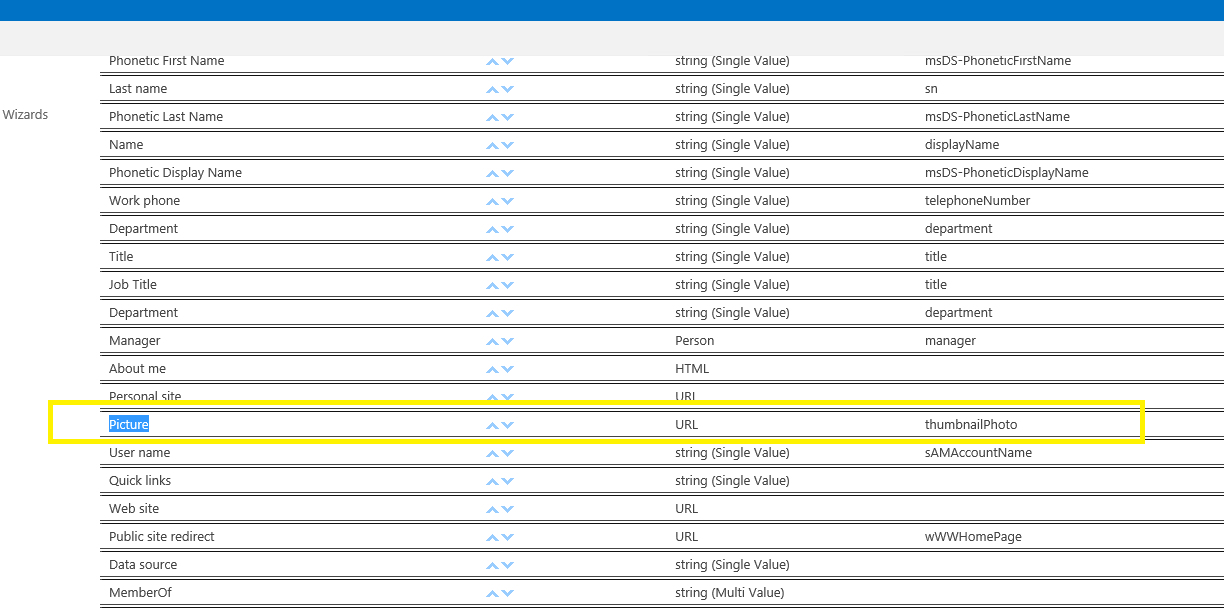
STEP 2 : Map thumbnailphoto attribute with picture user profile property


STEP 3 : Now run full crawl


STEP 4 : Once full crawl is done then run this command in SharePoint 2013 management shell as administrator 

Update-SPProfilePhotoStore -MySiteHostLocation <http://mysites address>


Wait for couple of minutes and check your SharePoint Site


Wednesday, April 1, 2015

Deleting number of sub sites recursively in SharePoint

Deleting number of sub sites recursively in SharePoint

(Enter the Text File Path that contains Name of Sites to be cleared)

function RemoveSPWebRecursively($web)
{
    $subwebs = $web.Webs
    foreach($subweb in $subwebs)
    {
        RemoveSPWebRecursively($subweb)
        $subweb.Dispose()
    }
    Remove-SPWeb $web -Confirm:$false
}


Write-Host
Write-Host

write-host "Enter the SharePoint Site URL : "
[string]$URL = Read-Host
[string]$WebURL =  $URL.Trim()


$objSite = Get-SPWeb $WebURL -ErrorAction SilentlyContinue


if($objSite -eq $null)
{
               Write-Host
               Write-Host "Site URL not correct or Site does not extsts. Re-run the script with correct URL." -foregroundcolor Red
               Read-Host
}
else
{
        Write-Host
        Write-Host
           write-host "Enter the Text File Path that contains Sites list to be deleted : "
        [string]$FilePathTmp = Read-Host
        [string]$FilePath =  $FilePathTmp.Trim().Replace('"','')
        $Projects = Get-Content -Path $FilePath
        if($Projects -eq $null)
        {
            Write-Host
               Write-Host "Sorry! Unable to get contents from file." -foregroundcolor Red
               Read-Host
        }
        else
        {
            Write-Host
            write-host  "["  $Projects.count  "] Project(s) found in file. " -foregroundcolor Green
            Write-Host
            $TotalInFile=$Projects.count
            $TotalInWeb =$objSite.Webs.Count
            [int]$TotalDeleted=0

            if( $Projects.count -gt 0)
            {
                foreach ($ProjectSite in $Projects)
                {
                    if($ProjectSite -ne $null)
                    {
                        [bool]$SiteFound =$false;
                       
                        $ProjectSite=$ProjectSite.Trim()

                        for ($i = 0; $i -lt $objSite.Webs.Count; $i++)
                        {
                            $subSite = $objSite.Webs[$i];
                            if($subSite -ne $null)
                            {
                              if($subSite.Title -eq $ProjectSite)
                              {
                                $SiteFound =$true;
                                write-host "FOUND Project Site : " $ProjectSite -foregroundcolor Yellow
                                if( $subSite.Webs.Count -gt 0)
                                {
                                    RemoveSPWebRecursively $subSite
                                }
                                else
                                {
                                    Remove-SPWeb $subSite -Confirm:$False
                                }
                                $TotalDeleted=$TotalDeleted + 1
                                write-host "Project Site : " $ProjectSite " deleted successfully" -foregroundcolor Green
                                break
                              }
                            }
                            else
                            {
                                write-host "Site was NULL at : " $i -foregroundcolor Red
                            }
                        }

                        if($SiteFound -eq $false)
                        {
                            write-host "NOT FOUND Project Site : " $ProjectSite -foregroundcolor Red
                        }
                    }
                }
                <#
                foreach($subSite in $objSite.Webs)
                      {
                    foreach ($ProjectSite in $Projects)
                    {
                        if($ProjectSite -ne $null)
                        {
                            $ProjectSite=$ProjectSite.Trim()
                            if($subSite.Title -eq $ProjectSite)
                            {
                                write-host "Found Project Site : " $ProjectSite -foregroundcolor Green
                            }
                        }
                    }
                             $subSite.Dispose()
                      }#>

                Write-Host
                Write-Host "Sites Deleted Sucessfully....." -foregroundcolor Yellow
                Write-Host
                Write-Host "Total Sites Found in File to be deleted :  " $TotalInFile -foregroundcolor Green
                Write-Host "Total Sites Found in Web Application :  " $TotalInWeb -foregroundcolor Green
                Write-Host "Total Sites Deleted :  " $TotalDeleted -foregroundcolor Green

                Write-Host
                Write-Host "Press Enter to exit." -foregroundcolor Yellow
                   Read-Host
            }
            else
            {
                Write-Host
                Write-Host "No Sites list found in file.... Press Enter to exit." -foregroundcolor Red
                   Read-Host
            }
           
        }
        $objSite.Dispose()
}